Products to sellLesson 3 of 4
Canva course: design invitation templates and planners for Etsy
Sir Zakria Afzal's Canva class, from custom-size designs and editing tools to AI-assisted invitations, planners, mockups and delivery of editable templates.
- Status
- stable
- Trust
- human-reviewedHuman: Ahmed Raza ·
These notes are from Sir Zakria Afzal's "Canva Course" class in his Etsy course. The class shows how to use Canva to make products and listing images; the policy notes distinguish the class workflow from platform rules.
Get comfortable with Canva
Canva is a graphic design tool that can also support branding. Open canva.com, sign up, and start a design with Custom size. Canva then shows templates suited to that size, which can give you a starting point.1
Explore the editor one tool at a time:1
| Tool | What to practise |
|---|---|
| Elements | Search for the element you need, add it, and use the controls shown above it to adjust its properties. The controls depend on the selected element. |
| Text | Add text, then try its editing and styling controls. |
| Images | Add an image and explore its available editing controls. |
| Apps | Look for image and video mockup tools to present your design. |
The class's advice is to explore text, elements and images directly in the editor. Their controls become clearer through use, rather than through memorising every option at once.1
Invitation templates: from idea to editable design
Birthday and wedding invitations are the class's examples. Sir Zakria gives three ways to start: hire a professional designer, generate an image with AI and modify it in Canva, or take a Canva template and modify it. His demonstrated route combines AI with Canva.1
- Choose an invitation idea, such as a colourful fairy-tale birthday card. Give the AI a prompt describing it. The class also suggests a Pinterest reference image to communicate the desired look.
- Bring the generated image into Canva and edit the design rather than stopping at the AI output. If you need an image prompt, ask ChatGPT for one and generate the image with Canva AI.
- For text embedded in an image, try Grab Text to turn selected words into editable text boxes, then revise them. Canva says this feature is available only on eligible plans and supported design types.
- Make a cover and show the finished design in image or video mockups for the Etsy listing.
- For an editable template, create a Canva Template link, then put that link and clear buyer instructions in a delivery PDF. 123
Important
Editing an AI image or an existing Canva template does not automatically make it an original design. Canva says products for sale must be original designs, and its content cannot be resold as-is or with only minimal changes. A Pinterest image may be useful as a reference, but copying protected artwork or someone else's finished template is a separate rights issue. Etsy requires sellers' original designs for digital downloads and disclosure in the listing description when an item was created with AI.45
Note
Canva says creating a Template link requires an eligible paid or organizational plan. If the template contains Canva Pro Content, Canva says it may be sold as a Canva Template link, not as a PDF template file. The class's delivery PDF is therefore a way to give the buyer the link; test that link before listing the product.34
Planners: design the pages, then present the product
A digital planner helps someone organise daily life. The class notes that planners can be made in Canva, DOCX or Excel; this lesson's workflow is the Canva version.1
- Study competing planners for ideas about the pages and information buyers need.
- Design your own planner in Canva. For table-like sections, Sir Zakria suggests using rectangle shapes to make the layout look better.
- Use ChatGPT to draft content, then review and edit it for your planner.
- Show the finished pages in mockups and create the Etsy listing images.1
For both invitations and planners, the working sequence is idea → design and edit → cover and mockups → buyer delivery. Check that the preview matches the file or editable template the buyer will actually receive. 1
Class infographic
The infographic reflects the lesson's workflow. Use the originality and template-link notes above when preparing a product for sale.
Class infographicTap the image to zoom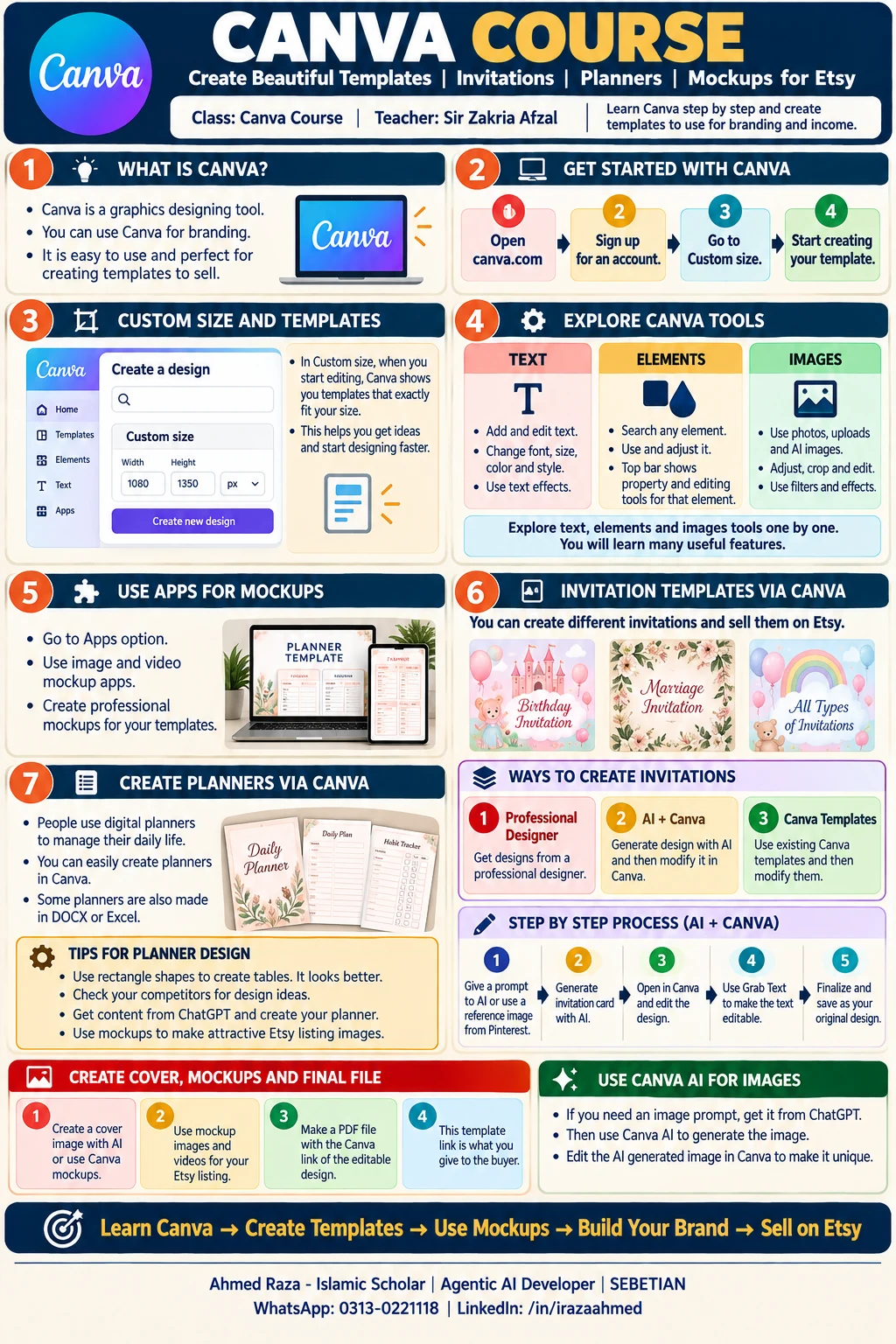 Canva Course by Sir Zakria Afzal, covering editor tools, invitations, planners, mockups and editable templatesOpen full size
Footnotes
-
Sir Zakria Afzal, "Canva Course" Etsy class, notes supplied by the record's owner on 2026-10-25. ↩ ↩2 ↩3 ↩4 ↩5 ↩6 ↩7 ↩8
-
Canva Help, "Selecting and changing the text in your photos with Grab Text," checked 2026-10-25. ↩
-
Canva Help, "Share your design as a template link," checked 2026-10-25. ↩ ↩2
-
Canva Help, "Use Canva to design digital and physical products for sale," checked 2026-10-25. ↩ ↩2
-
Etsy, "Creativity Standards," checked 2026-10-25. ↩
More in this chapter3
- LessonEtsy digital product creation: AI-built planners, Canva templates and listing videosSir Zafar's Class 16 on building planners with Gemini and Claude, creating social media templates with AI, generating an Etsy listing video and publishing 10 listings.Read lesson
- LessonEtsy shop and products: one shop, five listing images and coloring booksSir Zafar's Class 17 on running one Etsy shop for many product types, the listing video and five listing image prompts, and making a coloring book with ChatGPT.Read lesson
- LessonPrint on demand on Etsy with Printify: zero investment, nothing to shipSir Zafar's Class 18 on print on demand, linking Printify to Etsy, how an order and its money move, choosing a product and provider, and pricing with a 25 to 30% profit.Read lesson
Etsy shop and products: one shop, five listing images and coloring books
Sir Zafar's Class 17 on running one Etsy shop for many product types, the listing video and five listing image prompts, and making a coloring book with ChatGPT.
Print on demand on Etsy with Printify: zero investment, nothing to ship
Sir Zafar's Class 18 on print on demand, linking Printify to Etsy, how an order and its money move, choosing a product and provider, and pricing with a 25 to 30% profit.